
Anúncios
Unlocking 5G on your smartphone opens the door to faster speeds, lower latency, and a more responsive mobile experience that transforms how you connect with the digital world.


The arrival of 5G technology has revolutionized mobile connectivity, but many users struggle to activate or optimize this feature on their devices. Whether you’re experiencing slow speeds, inconsistent connections, or simply can’t find the 5G toggle, understanding how to properly enable and configure this network standard is essential for maximizing your smartphone’s potential.
From checking device compatibility to adjusting network settings, activating 5G involves several straightforward steps that vary slightly depending on your phone model and carrier. This comprehensive guide walks you through everything you need to know about enabling 5G on your mobile device, troubleshooting common issues, and ensuring you’re getting the most from this cutting-edge technology. 🚀
Understanding 5G Technology and Its Benefits
Fifth-generation wireless technology represents a quantum leap from its predecessor, 4G LTE. With theoretical download speeds reaching up to 10 Gbps, 5G delivers performance that’s exponentially faster than what most users experienced with previous network generations. This speed translates to downloading full HD movies in seconds rather than minutes.
Beyond raw speed, 5G introduces ultra-low latency, typically under 10 milliseconds. This responsiveness makes real-time applications like cloud gaming, video conferencing, and augmented reality experiences significantly smoother. The reduced lag creates a more seamless interaction between your device and online services, fundamentally changing how mobile applications can function.
Network capacity also sees dramatic improvements with 5G. The technology supports a far greater number of connected devices simultaneously without degradation in performance. This capability becomes increasingly important as smart homes, wearables, and IoT devices proliferate, all competing for bandwidth on the same network infrastructure.
Checking If Your Device Supports 5G 📱
Not all smartphones can access 5G networks, even if your carrier offers coverage. Device compatibility depends on specific hardware components, particularly the modem chipset integrated into your phone. Most flagship devices released after 2020 include 5G modems, but mid-range and budget models may still rely exclusively on 4G technology.
To verify your phone’s 5G capability, check the manufacturer’s specifications on the official website or in your device’s original packaging. Look for explicit mentions of “5G,” “5G NR,” or specific band support like n78, n77, or n260. These technical designations confirm hardware compatibility with various 5G frequency ranges.
Another quick verification method involves navigating to your phone’s settings and looking for 5G-related options in the mobile network preferences. If these options exist, your device likely supports the technology, though activation may require additional steps depending on your carrier’s configuration requirements.
Regional 5G Band Compatibility
Understanding frequency bands becomes crucial when purchasing phones internationally or traveling abroad. Different countries and carriers utilize various 5G spectrum allocations, broadly categorized into low-band, mid-band, and high-band (mmWave) frequencies. Your device must support the specific bands deployed in your region to connect to 5G networks.
Low-band 5G (sub-1 GHz) offers widespread coverage similar to 4G but with modest speed improvements. Mid-band (1-6 GHz) strikes a balance between coverage and performance, delivering significantly faster speeds across reasonable distances. High-band mmWave (24+ GHz) provides blazing speeds but limited range and building penetration, typically found in dense urban areas.
Step-by-Step Guide to Enabling 5G on Android Devices
Activating 5G on Android smartphones follows a generally consistent process across manufacturers, though exact menu locations may vary slightly. Begin by opening the Settings app, typically represented by a gear icon on your home screen or app drawer. This central hub controls all device configurations and network preferences.
Navigate to the “Connections” or “Network & Internet” section, depending on your device manufacturer. Samsung devices use “Connections,” while Google Pixel and stock Android phones label this section “Network & Internet.” Tap on “Mobile Networks” or “SIM & Network” to access cellular-specific settings where network preferences reside.
Within the mobile network settings, locate the “Preferred Network Type” or “Network Mode” option. Tap this selection to reveal available network standards. You should see options like “5G/4G/3G Auto,” “5G On,” or similar variations. Select the option that explicitly includes 5G to enable the device to connect to fifth-generation networks when available.
Samsung-Specific 5G Activation Process
Samsung Galaxy users experience a slightly customized interface within One UI. After opening Settings, tap “Connections,” then “Mobile Networks.” The “Network Mode” option appears prominently near the top of this menu. Tapping it reveals choices including “5G/LTE/3G/2G (auto connect)” or simply “5G/LTE.”
Some Samsung models feature a separate “5G settings” submenu where you can choose between “5G On” and “LTE/3G/2G.” The “5G On” setting forces your device to prioritize 5G connections whenever available, while auto-connect modes intelligently switch between network types based on signal strength and availability.

Enabling 5G on iPhone Devices 🍎
Apple’s approach to 5G implementation emphasizes battery optimization and intelligent network switching. iPhones running iOS 14 or later support 5G on compatible models, starting with the iPhone 12 series. The activation process streamlines through iOS’s characteristically clean interface, requiring just a few taps.
Open the Settings app and tap “Cellular” or “Mobile Data,” depending on your region. Select “Cellular Data Options” to access network configuration settings. Here you’ll find “Voice & Data” options that control which network technologies your iPhone utilizes for different types of connections.
Three main options typically appear: “5G Auto,” “5G On,” and “LTE.” The “5G Auto” setting represents Apple’s smart data mode, which balances 5G connectivity with battery conservation by switching to LTE when 5G speeds aren’t significantly beneficial. “5G On” forces constant 5G usage when available, maximizing performance but potentially reducing battery life. “LTE” disables 5G entirely.
Understanding 5G Standalone vs Non-Standalone
Some carriers support both 5G standalone (SA) and non-standalone (NSA) architectures. NSA 5G relies on existing 4G infrastructure as an anchor, while SA 5G operates independently with dedicated core network architecture. Standalone deployments offer superior latency and network slicing capabilities but require more extensive carrier infrastructure investments.
Your phone connects to whichever architecture your carrier has deployed. Most initial 5G rollouts utilized NSA mode for faster deployment, while carriers gradually transition to SA implementations. Users typically don’t need to manually select between these modes—devices automatically connect to the available architecture.
Troubleshooting Common 5G Activation Issues
When 5G options don’t appear in your settings despite having a compatible device, several factors might be responsible. First, verify that your mobile carrier plan includes 5G access. Some carriers require specific plan tiers or add-ons for 5G connectivity, with basic plans limited to 4G speeds even on capable devices.
SIM card compatibility presents another potential obstacle. Older SIM cards may lack provisioning for 5G networks, requiring replacement with newer cards that support the technology. Contact your carrier to request a 5G-enabled SIM if you suspect this issue, as replacements typically arrive free of charge.
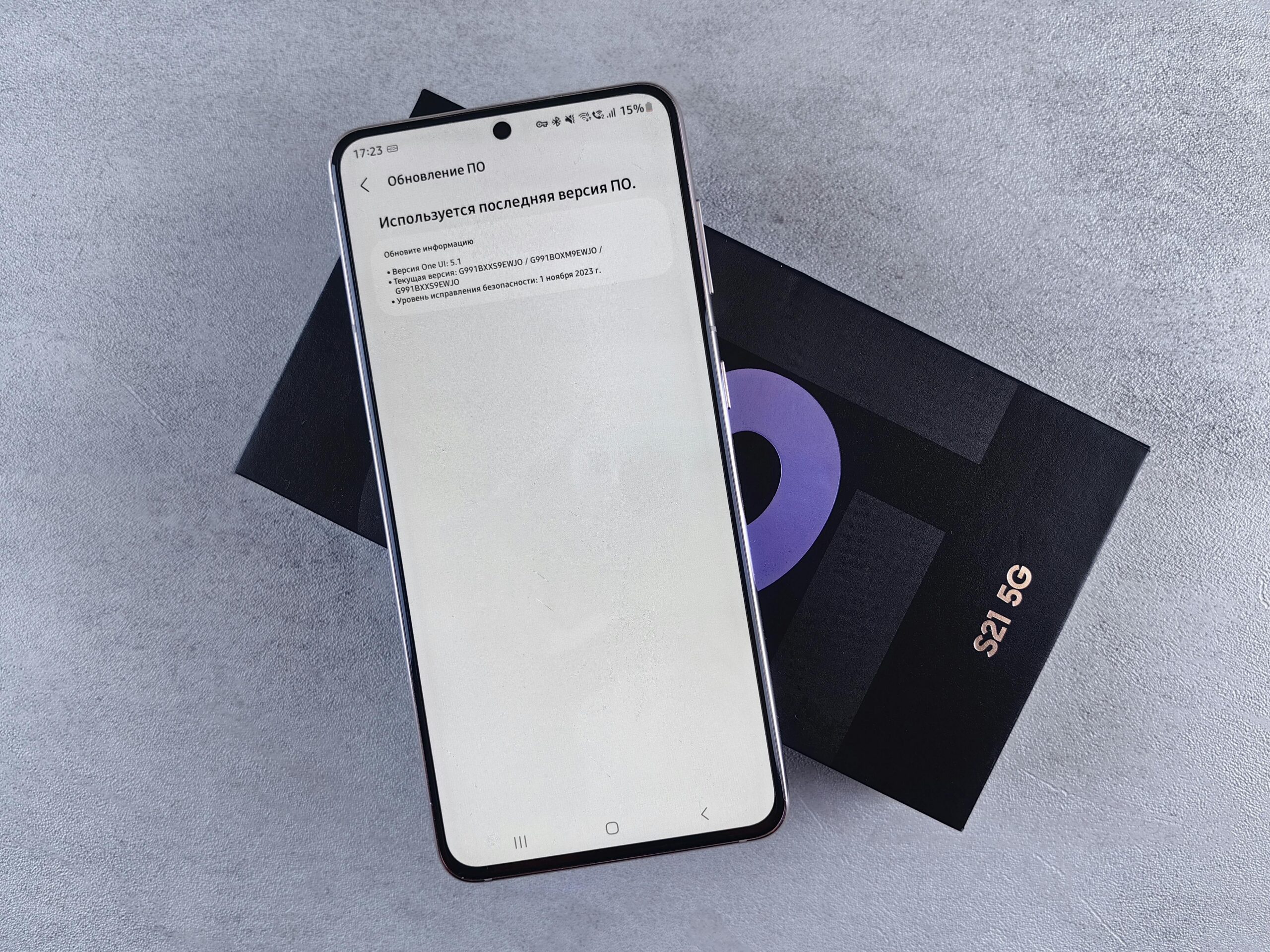
Software updates play a critical role in 5G functionality. Manufacturers and carriers frequently release firmware updates that enable or optimize 5G features. Navigate to your device’s software update section and install any pending updates. These updates often include carrier configuration profiles necessary for 5G authentication and connection establishment.
Coverage and Signal Strength Considerations
Even with proper activation, 5G connectivity depends on physical proximity to compatible cell towers. Use your carrier’s coverage map to verify 5G availability in your area. Urban centers typically receive priority for 5G deployment, while rural areas may wait years for comprehensive coverage rollout.
Signal strength indicators sometimes mislead users. Your phone might display a 5G icon while actually connected to 4G with 5G anchor connections. This “5GE” or “5G+” on some carriers indicates enhanced 4G rather than true fifth-generation technology. Testing actual speeds using dedicated apps confirms whether you’re experiencing genuine 5G performance.
Optimizing 5G Performance on Your Device ⚡
Maximizing 5G speeds requires more than simple activation. Physical factors like phone positioning, obstacles, and distance from towers significantly impact performance. mmWave 5G particularly suffers from poor building penetration, often requiring line-of-sight to cell sites for optimal speeds.
Disable battery-saving modes that might throttle network performance. Many smartphones include settings that limit background data or reduce cellular performance to extend battery life. While useful when power runs low, these features can artificially cap your 5G speeds well below what the network delivers.
Reset network settings if you experience persistent connectivity issues. This process clears stored network configurations, Wi-Fi passwords, and cellular settings, forcing your device to establish fresh connections. Navigate to Settings > System > Reset Options > Reset Wi-Fi, mobile & Bluetooth on Android, or Settings > General > Transfer or Reset iPhone > Reset > Reset Network Settings on iOS.
Battery Impact and Management Strategies 🔋
5G connectivity undeniably consumes more power than 4G LTE, particularly when using higher-frequency bands. The increased data transmission speeds and constant network scanning for optimal connections drain battery faster. Users often notice 10-30% reduced battery life when exclusively using 5G compared to LTE-only modes.
Intelligent network mode switching helps mitigate battery drain. Both Android and iOS offer automatic modes that selectively engage 5G only when performance benefits justify the power consumption. These smart modes analyze your current activity—streaming video benefits from 5G, while basic messaging doesn’t require it.
Consider manually toggling between 5G and LTE based on your daily routine. Enable 5G during periods when you need maximum performance for downloads, streaming, or gaming, then switch to LTE for routine browsing and communication. This strategy balances performance with battery longevity throughout your day.
Monitoring Data Usage on 5G Networks
Faster speeds inadvertently encourage higher data consumption. Content that previously took long enough to reconsider downloading now completes almost instantly, leading users to consume significantly more data. Streaming services automatically select higher quality settings when detecting faster connections, multiplying data usage without explicit user consent.
Set data usage alerts and limits through your device settings. Both major platforms include built-in tools for monitoring cellular consumption and warning when approaching plan limits. Configure these thresholds conservatively when first using 5G, as consumption patterns may differ dramatically from your 4G experience.
Carrier-Specific 5G Considerations
Different mobile carriers implement 5G with varying strategies, coverage areas, and performance characteristics. Some prioritize extensive low-band coverage for broad availability, while others focus on high-band mmWave deployments in dense urban markets. Understanding your carrier’s approach helps set realistic expectations for your 5G experience.
Carrier aggregation allows devices to combine multiple frequency bands simultaneously, boosting speeds beyond what single bands provide. Premium 5G plans from some carriers enable advanced features like network slicing and priority data, guaranteeing better performance during network congestion compared to basic plans.
International roaming with 5G remains inconsistent. Not all carriers support 5G connectivity when traveling abroad, automatically falling back to 4G or 3G networks. Verify international 5G availability with your carrier before traveling if maintaining high-speed connectivity abroad is essential for your trip.
Future-Proofing Your 5G Experience 🌐
The 5G landscape continues evolving rapidly with ongoing infrastructure improvements and expanded coverage. Software updates regularly enhance device compatibility with new network features and frequency bands. Enable automatic updates or check regularly to ensure your device leverages the latest optimizations and capabilities.
Upcoming releases like 5G Advanced (5.5G) promise even greater speeds and efficiency. While requiring new infrastructure, many current devices will support these enhancements through software updates. Investing in devices with comprehensive band support and recent modem chipsets ensures compatibility with future network improvements.
Application developers increasingly optimize software specifically for 5G capabilities. Cloud gaming services, augmented reality applications, and real-time collaboration tools leverage 5G’s low latency and high bandwidth for experiences impossible on previous network generations. Exploring these emerging applications reveals the technology’s transformative potential beyond simple speed improvements.
Security and Privacy on 5G Networks 🔒
Fifth-generation networks incorporate enhanced security protocols compared to 4G, including improved encryption and authentication mechanisms. The 5G standard mandates encryption for more connection types and implements stronger protection against false base station attacks that plagued earlier network generations.
However, the increased connectivity and IoT device proliferation enabled by 5G expand potential attack surfaces. Maintain robust device security practices: use VPNs on public networks, keep software updated, and carefully manage app permissions that access cellular connections. These precautions remain essential regardless of network technology.
Privacy considerations around 5G primarily concern data collection rather than the technology itself. Carriers potentially track location and usage patterns more precisely with 5G’s enhanced capabilities. Review your carrier’s privacy policies and adjust account settings to limit data collection where possible, exercising control over what information you share.
Making the Most of Your 5G Connection
Enabling 5G on your smartphone unlocks access to the fastest mobile networks currently available, transforming how you interact with digital content and services. From seamless 4K streaming to responsive cloud applications, the benefits extend far beyond simple download speeds when properly configured and optimized.
Success with 5G requires understanding your device capabilities, carrier offerings, and coverage realities. By following the activation steps outlined for your specific device, troubleshooting common issues, and implementing smart usage strategies, you position yourself to fully leverage this transformative technology’s potential.
As 5G networks continue expanding and maturing, staying informed about updates and new capabilities ensures you extract maximum value from your mobile experience. The future of connectivity has arrived—make sure your device is ready to embrace it. ✨
